 我的书签
我的书签
 添加书签
添加书签 移除书签
移除书签Ubuntu22.04安装docker
检查当前是否已安装:
- docker —version
step 1: 安装必要的依赖:
- apt install apt-transport-https ca-certificates curl software-properties-common
step 2: 安装GPG证书
- curl -fsSL https://mirrors.aliyun.com/docker-ce/linux/ubuntu/gpg | sudo gpg —dearmor -o /usr/share/keyrings/docker-archive-keyring.gpg

- Step 3: 设置 Docker 仓库:
- echo “deb [arch=$(dpkg —print-architecture) signed-by=/usr/share/keyrings/docker-archive-keyring.gpg] https://mirrors.aliyun.com/docker-ce/linux/ubuntu $(lsb_release -cs) stable” | sudo tee /etc/apt/sources.list.d/docker.list > /dev/null
Step 4: 更新软件包列表:
- apt update
jammy对应的是ubuntu22.04
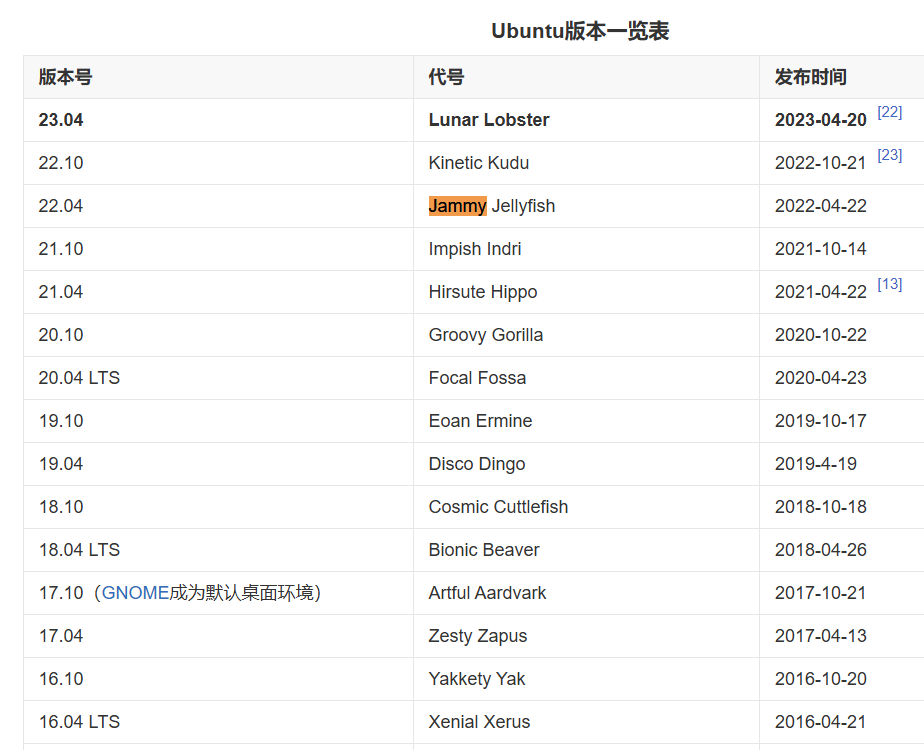
安装源前:
- apt list |grep docker
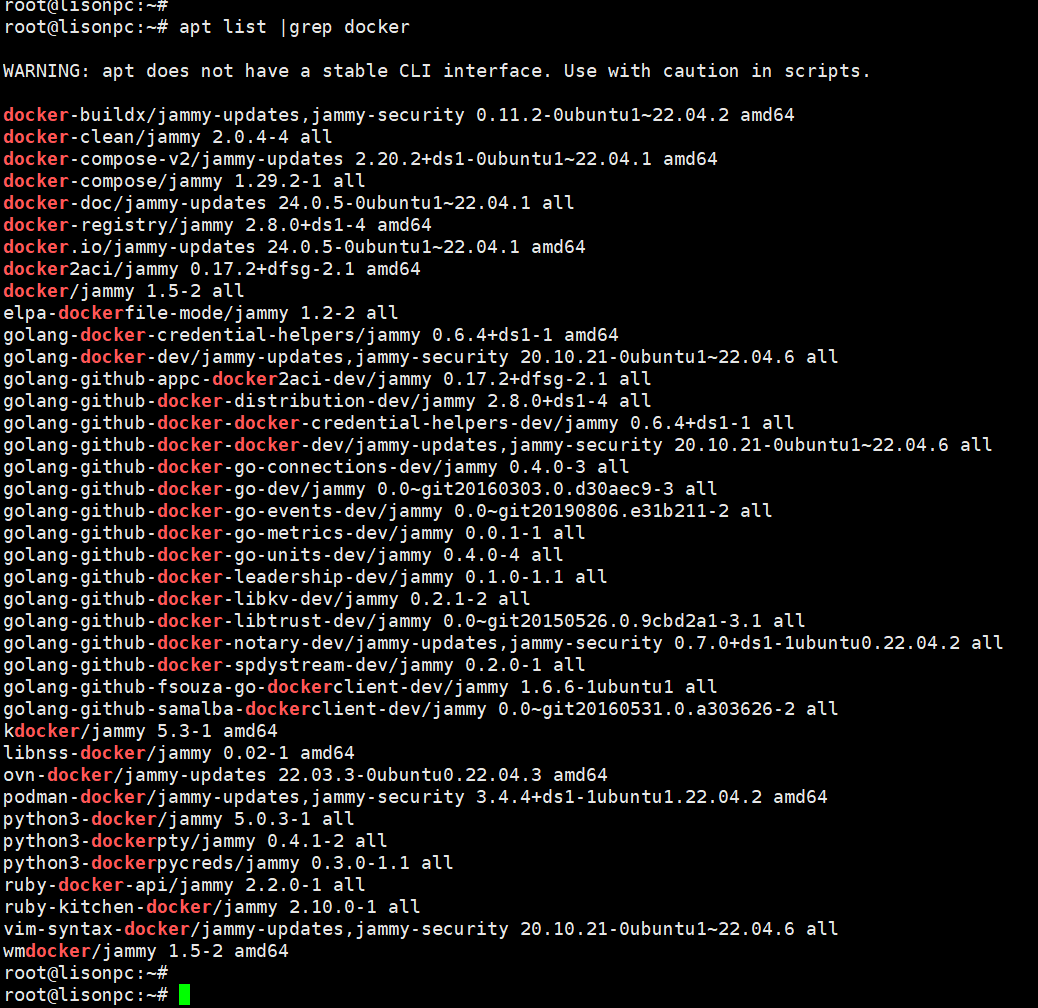
安装源后:
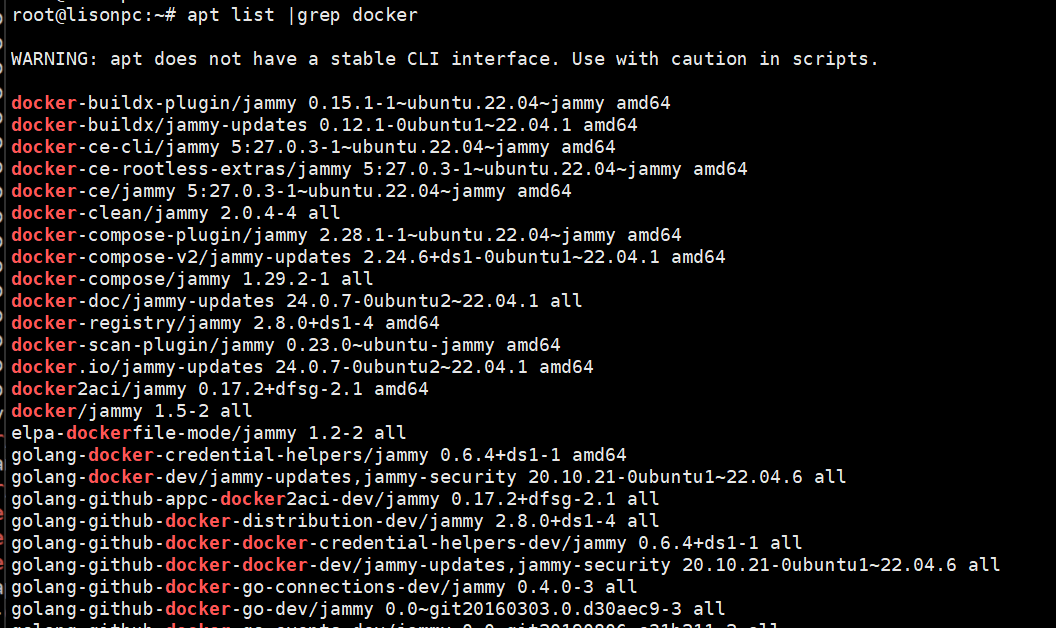
查看可用的 Docker 版本:
- apt list -a docker-ce
- apt info docker-ce
安装指定版本:
- apt install docker-ce=5:27.1.1-1~ubuntu.22.04~jammy docker-ce-cli=5:27.1.1-1~ubuntu.22.04~jammy containerd.io -y
启动 Docker 服务:
- systemctl start docker
- systemctl restart docker
- systemctl stop docker
- systemctl status docker
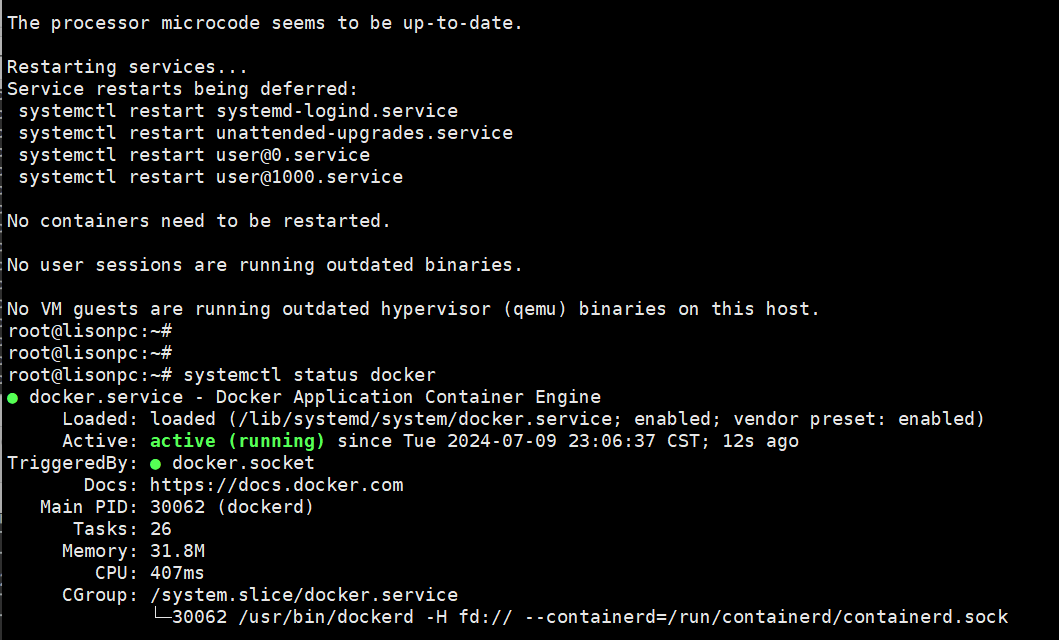
# 检查是否开机启动:systemctl is-enabled docker# 设置 Docker 开机启动(默认):systemctl enable docker# 禁用开机启动:systemctl disable docker# 设置仓库镜像:sudo tee /etc/docker/daemon.json
{ “registry-mirrors”: [“https://registry.docker-cn.com","https://hub.docker.com","http://mirrors.ustc.edu.cn","https://docker.mirrors.ustc.edu.cn","http://hub-mirror.c.163.com","https://cr.console.aliyun.com“] }
EOF
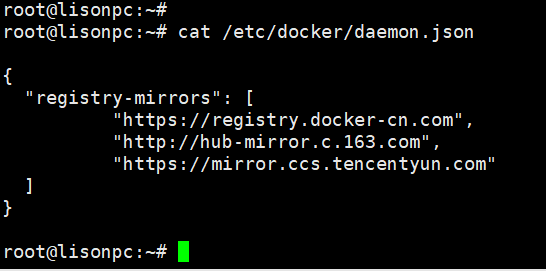
- systemctl daemon-reload
- systemctl restart docker
查看仓库源/镜像源:
- docker info | grep Mirrors -A 9
设置docker代理(VPN):
vi /lib/systemd/system/docker.service
- # 新增环境变量提供代理服务器信息
Environment=”HTTP_PROXY=http://<user>:<password>@<domain>:<port>”
Environment=”HTTPS_PROXY=http://<user>:<password>@<domain>:<port>”
Environment=”HTTP_PROXY=http://127.0.0.1:8890“
Environment=”HTTPS_PROXY=http://127.0.0.1:8890“
重启服务使其代理生效:
- systemctl daemon-reload
- systemctl restart docker
- 测试
- docker pull mysql:8
- 否则报错(超时):registry-1.docker.io
